


Introduction
If you’ve ever tried to send an iMessage, back up your iPhone to iCloud, or download an app from the App Store only to find that nothing seems to work, your first instinct might be to blame your internet connection. However, the issue isn’t always on your end. Sometimes Apple’s own online services experience temporary outages or technical issues, and that’s exactly where the Apple System Status Page becomes incredibly useful.
The Apple System Status Page is Apple’s official dashboard that displays the current operational status of its online services, servers, and cloud-based platforms. Instead of wasting time restarting your devices or troubleshooting problems that aren’t yours, you can quickly check whether Apple is already aware of an ongoing issue.
Whether you’re an everyday iPhone owner, a Mac user, a software developer, or someone who relies heavily on Apple’s ecosystem, understanding how this page works can save both time and frustration. In this guide, we’ll explore everything you need to know about the Apple System Status Page, including how it works, why it’s important, and how to use it effectively whenever Apple services appear to be down.
What Is the Apple System Status Page?
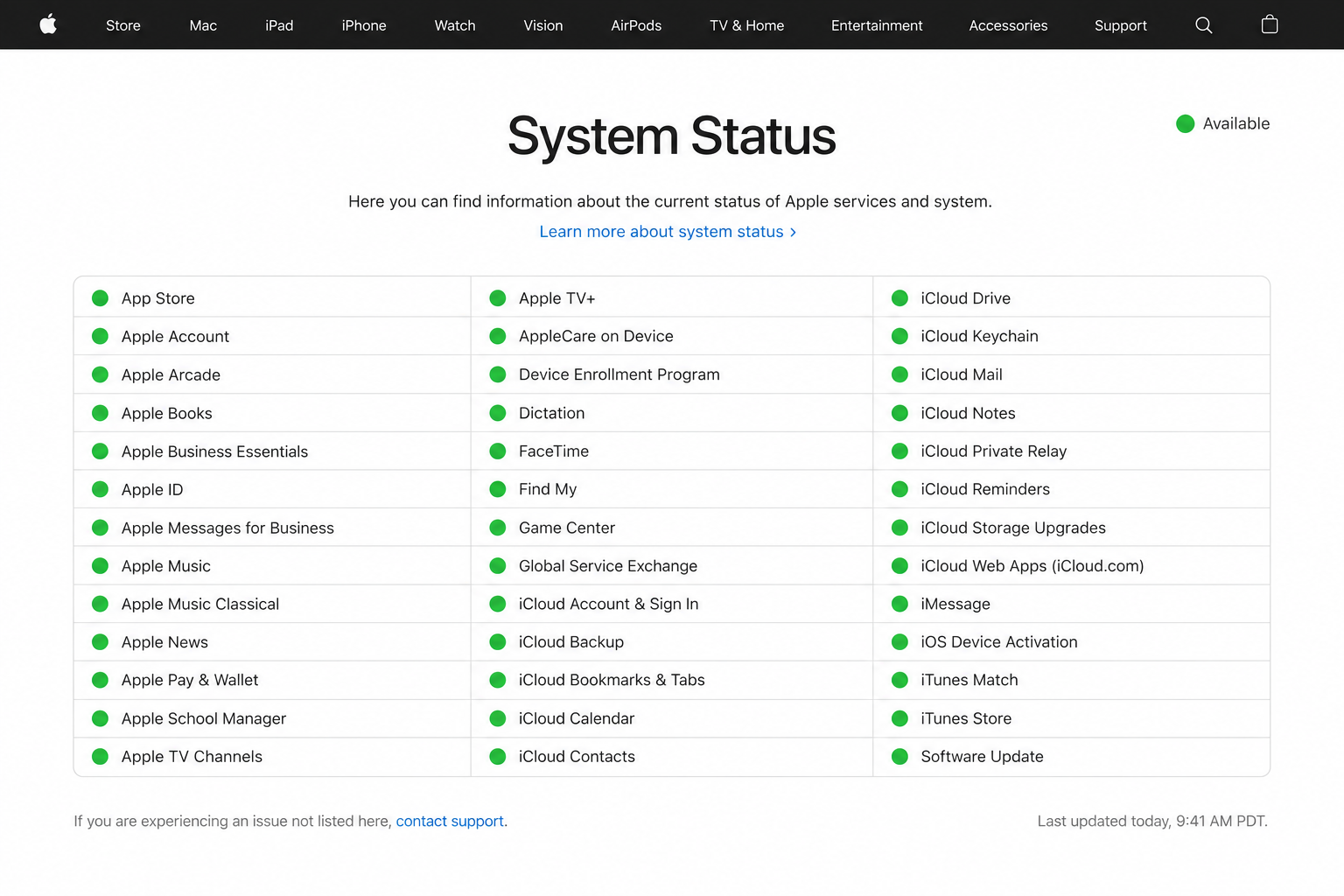
The Apple System Status Page is an official web page maintained by Apple that provides real-time information about the availability of its online services. It acts as a health monitor for Apple’s cloud infrastructure, allowing users to see whether services are functioning normally or experiencing outages.
The page includes dozens of Apple services, ranging from consumer platforms like iCloud, Apple Music, FaceTime, Apple Maps, Apple Pay, and the App Store to developer tools such as Xcode Cloud, TestFlight, Apple Developer services, and App Store Connect. Each service is marked with a colored status indicator that makes it easy to understand its current condition.
Green icons generally indicate that a service is operating normally. A yellow indicator means that a service is experiencing issues, while red typically represents a significant outage. Apple also provides timestamps and brief explanations whenever a service has been affected, helping users understand when the issue started and whether it has already been resolved.
Why the Apple System Status Page Is So Important
Many people immediately assume that a device is broken when something stops working. In reality, cloud-based services depend on servers located around the world, and occasional maintenance or unexpected outages can interrupt access for millions of users.
Checking the Apple System Status Page before troubleshooting can prevent unnecessary frustration. If Apple confirms an outage, you instantly know the issue isn’t caused by your iPhone, Mac, iPad, or internet connection. Instead of spending time resetting network settings or reinstalling applications, you simply wait until Apple resolves the problem.
This also benefits businesses and professionals. Companies that rely on Apple Business services, Apple Pay, or developer tools can quickly determine whether disruptions are affecting their operations. For developers, knowing that App Store Connect is temporarily unavailable can explain failed uploads or delayed app submissions.
Services You Can Monitor on the Apple System Status Page
One of the biggest advantages of the Apple System Status Page is its comprehensive coverage. Apple monitors dozens of online platforms that support its hardware and software ecosystem.
Among the most commonly checked services are iCloud, iCloud Mail, iCloud Drive, Photos, FaceTime, iMessage, Apple Music, Apple TV+, Apple Arcade, Apple Maps, Apple Books, Apple Podcasts, Apple Pay, Siri, and the App Store. These are services used by millions of customers every day.
Developers also benefit from monitoring App Store Connect, Apple Business Manager, Apple School Manager, Certificates and Profiles, TestFlight, Apple Developer Account services, and Xcode Cloud. Since these platforms are essential for publishing and maintaining applications, status updates are particularly valuable during software releases.
How to Read the Status Indicators
The Apple System Status Page is intentionally simple, making it easy for anyone to understand within seconds.
A green circle means the service is available and operating normally. This indicates there are no known widespread issues affecting users.
A yellow symbol signals that Apple has detected problems with the service. These issues might affect only certain users, regions, or specific features rather than causing a complete outage.
A red indicator usually means the service is unavailable or experiencing major disruptions. Apple often accompanies these alerts with detailed information describing the issue and its expected resolution timeline.
When Should You Check the Apple System Status Page?
There are many situations where visiting the Apple System Status Page should be your first troubleshooting step.
For example, if iCloud backups suddenly fail, checking the page can quickly reveal whether iCloud Backup is experiencing downtime. Likewise, if FaceTime calls refuse to connect or iMessage messages remain stuck on “Sending,” the page may confirm that Apple’s messaging servers are temporarily unavailable.
App Store download problems are another common reason to check the dashboard. Users often think their phones have storage issues or software bugs when, in reality, Apple’s App Store servers may simply be experiencing temporary interruptions.
Developers should also monitor the page before uploading new applications or submitting updates, especially during major Apple events or operating system launches when server demand tends to increase significantly.
Common Problems the Status Page Can Help Explain
Many technical issues that appear to be device-related actually originate from Apple’s servers.
For example, users frequently report problems signing into iCloud, syncing photos across devices, activating new iPhones, or restoring backups. While these can sometimes result from local issues, they are also common symptoms of server outages.
Apple Music streaming interruptions, Apple Pay transaction failures, Siri response delays, and Apple Maps loading errors may also be caused by temporary service disruptions rather than problems with your device.
By checking the Apple System Status Page first, you eliminate unnecessary guesswork and avoid performing troubleshooting steps that won’t solve a server-side issue.
What to Do If Everything Shows Green
Sometimes you’ll encounter a problem even though every service on the Apple System Status Page appears to be operating normally.
In these situations, the issue is more likely related to your own device, internet connection, Apple ID, software version, or regional network provider. Restarting your device, checking your Wi-Fi connection, updating iOS or macOS, and signing out and back into your Apple ID may resolve the problem.
It’s also worth remembering that not every localized issue appears immediately on Apple’s dashboard. Occasionally, a small outage affecting only one region may take some time before Apple officially reports it.
If problems continue despite the system status showing normal operation, contacting Apple Support is usually the next best step.
Tips for Using the Apple System Status Page Effectively
Experienced Apple users often make the status page part of their regular troubleshooting routine.
Bookmarking the page in your browser allows you to access it quickly whenever something doesn’t work as expected. This simple habit can save valuable time and prevent unnecessary troubleshooting.
It’s also useful to compare the information with community reports from social media or outage-monitoring websites. While unofficial sources can provide early indications of widespread issues, Apple’s own System Status Page remains the most authoritative source for confirmed service disruptions.
For businesses and developers, checking the page before important launches, software deployments, or customer support sessions can help identify server-related problems before they become larger issues.
Final Thoughts
The Apple System Status Page is one of the most valuable yet often overlooked resources available to Apple users. Instead of guessing whether your iPhone, Mac, iPad, or internet connection is causing a problem, you can instantly verify the health of Apple’s online services through an official source.
Whether you’re troubleshooting iCloud syncing, FaceTime calls, App Store downloads, Apple Music streaming, or developer services, the page provides real-time transparency into Apple’s infrastructure. It helps users distinguish between local device issues and server-side outages, making troubleshooting faster and far less frustrating.
As Apple’s ecosystem continues to expand with more cloud-powered features and online services, the Apple System Status Page will remain an essential tool for consumers, businesses, and developers alike. Making it your first stop whenever something goes wrong can save time, reduce confusion, and give you confidence that you’re responding to the actual cause of the issue rather than chasing problems that don’t exist.
You May Also Read: Rage Comics


