


Introduction
How to Change WiFi Password Your WiFi network is the gateway to your internet connection. If too many people know your WiFi password, your internet speed can become slow, your network security can be compromised, and unauthorized users may access your personal data. That’s why learning how to change WiFi password is an essential skill for every internet user.
Whether you use TP-Link, Huawei, Tenda, D-Link, Netgear, or any other router, the process is very similar. In this guide, you’ll learn how to change your WiFi password in a few simple steps, along with useful security tips to keep your network safe.
Why Should You Change Your WiFi Password?
How to Change WiFi Password There are several reasons to update your WiFi password regularly.
- Improve network security.
- Prevent neighbors from using your internet.
- Increase internet speed by removing unauthorized users.
- Protect personal information from hackers.
- Reset your network after sharing the password with guests.
Experts recommend changing your WiFi password every 3 to 6 months for better security.
Things You Need Before Changing Your WiFi Password
Before you begin, make sure you have:
- Your WiFi router.
- A phone, laptop, or desktop connected to the router.
- Router login username and password (usually printed on the router label).
- A web browser like Chrome, Edge, or Firefox.
How to Change WiFi Password
Follow these simple steps.
Step 1: Connect to Your Router
Connect your computer or smartphone to your WiFi network.
You can also connect using an Ethernet cable if needed.
Step 2: Open Router Login Page
How to Change WiFi Password Open your web browser and type one of these IP addresses into the address bar:
- 192.168.1.1
- 192.168.0.1
- 192.168.100.1
Press Enter.
If none of these work, check the sticker on your router or look up the default gateway in your network settings.
Step 3: Log Into the Router
Enter your router username and password.
Common default credentials are:
Username: admin
Password: admin
or
Username: admin
Password: password
If you’ve changed the login credentials before, use your custom username and password.
Step 4: Find Wireless Settings
After logging in, navigate to:
- Wireless
- Wireless Settings
- WiFi Settings
- WLAN
- Network Settings
The exact menu depends on your router brand.
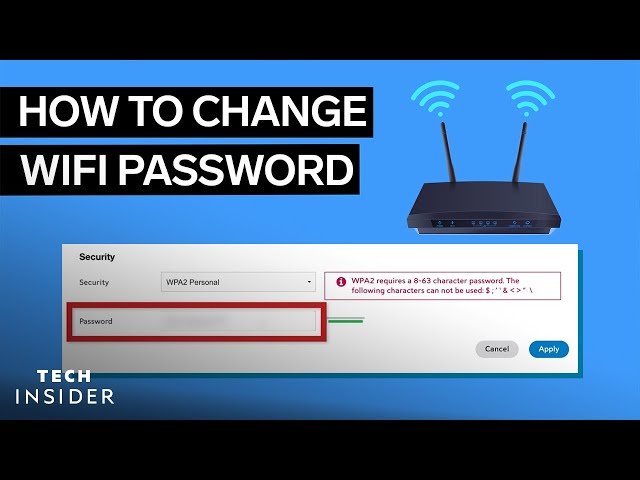
Step 5: Change the WiFi Password
Locate the field labeled: How to Change WiFi Password
- Wireless Password
- WiFi Password
- WPA Key
- WPA2 Password
- Security Key
- Pre-Shared Key
Delete the old password and enter a new one.
Step 6: Save Changes
Click Save, Apply, or Update.
Your router may restart automatically.
Once restarted, reconnect all your devices using the new password.
How to Create a Strong WiFi Password
A strong password makes it much harder for hackers to access your network.
Use these tips:How to Change WiFi Password
- At least 12 characters long.
- Include uppercase and lowercase letters.
- Add numbers.
- Include special symbols.
- Avoid names or birthdays.
- Don’t use simple passwords like “12345678”.
Example:
M7#WiFi2026!Safe
How to Change WiFi Password on Popular Router Brands
TP-Link
- Login to the router.
- Go to Wireless Settings.
- Open Wireless Security.
- Change the WPA Password.
- Save changes.
Huawei
- Login to the router.
- Open WLAN Settings.
- Select SSID.
- Change the WiFi password.
- Save and reconnect.
Tenda
- Login to 192.168.0.1.
- Open Wireless Settings.
- Change WiFi Password.
- Save settings.
D-Link
- Login to the admin panel.
- Open Wireless.
- Select Security Mode.
- Change Password.
- Save.
Netgear
- Login to the router dashboard.
- Click Wireless.
- Edit Password (Network Key).
- Apply changes.
What Happens After Changing the WiFi Password?
Once you change the password: How to Change WiFi Password
- All connected devices will disconnect.
- You’ll need to reconnect each device using the new password.
- Old passwords will no longer work.
- Unauthorized users will lose access to your network.
Common Problems When Changing WiFi Password
Can’t Access Router Login Page
Try another IP address or restart your router.
Forgot Router Login Password
Press and hold the Reset button for about 10 seconds to restore factory settings. After resetting, you’ll need to configure your router again.
WiFi Not Connecting
Double-check the new password and ensure you entered it correctly. Restart both the router and your device if needed.
Additional Security Tips
Besides changing your WiFi password, consider these best practices:
- Use WPA2 or WPA3 encryption.
- Change the default router admin password.
- Disable WPS if you don’t use it.
- Update your router’s firmware regularly.
- Keep your router in a secure location.
- Monitor connected devices occasionally.
Frequently Asked Questions (FAQs)
How often should I change my WiFi password?
Every 3 to 6 months or immediately if you think someone has gained unauthorized access.
Will changing my WiFi password disconnect devices?
Yes. All connected devices must reconnect using the new password.
Can I change my WiFi password using my phone?
Yes. Simply open your router’s login page in a mobile browser and follow the same steps.
What if I forget my new WiFi password?
Log in to your router to view or change it again. If you can’t access the router, reset it to factory settings.
Is changing the WiFi password enough to secure my network?
It’s an important step, but you should also use WPA2/WPA3 encryption, update firmware, and change the default admin password.
Conclusion
Knowing how to change WiFi password is one of the easiest ways to improve your home network security. The process only takes a few minutes and helps protect your internet connection from unauthorized users while improving overall performance.
By following the steps in this guide, creating a strong password, and keeping your router updated, you can enjoy a faster, safer, and more reliable WiFi experience.


